Browse the FAQs below or try out the SRJC Faculty Banner Q&A bot.
Bear Cub Hub
- What is the Bear Cub Hub?
Bear Cub Hub is SRJC’s new portal where students and employees can access important tools, tasks, and information—all in one place.
- How do I access the Bear Cub Hub?
Access the Bear Cub Hub from the SRJC homepage. Under “Login,” choose Bear Cub Hub. See below for Login and Password directions.
- When can I start using Bear Cub Hub?
Staff can access Bear Cub Hub starting March 23.
Students can access Bear Cub Hub starting April 1. Be sure to have your new SID and password ready.
Login & Passwords for Employees
- How do I log in to Bear Cub Hub?
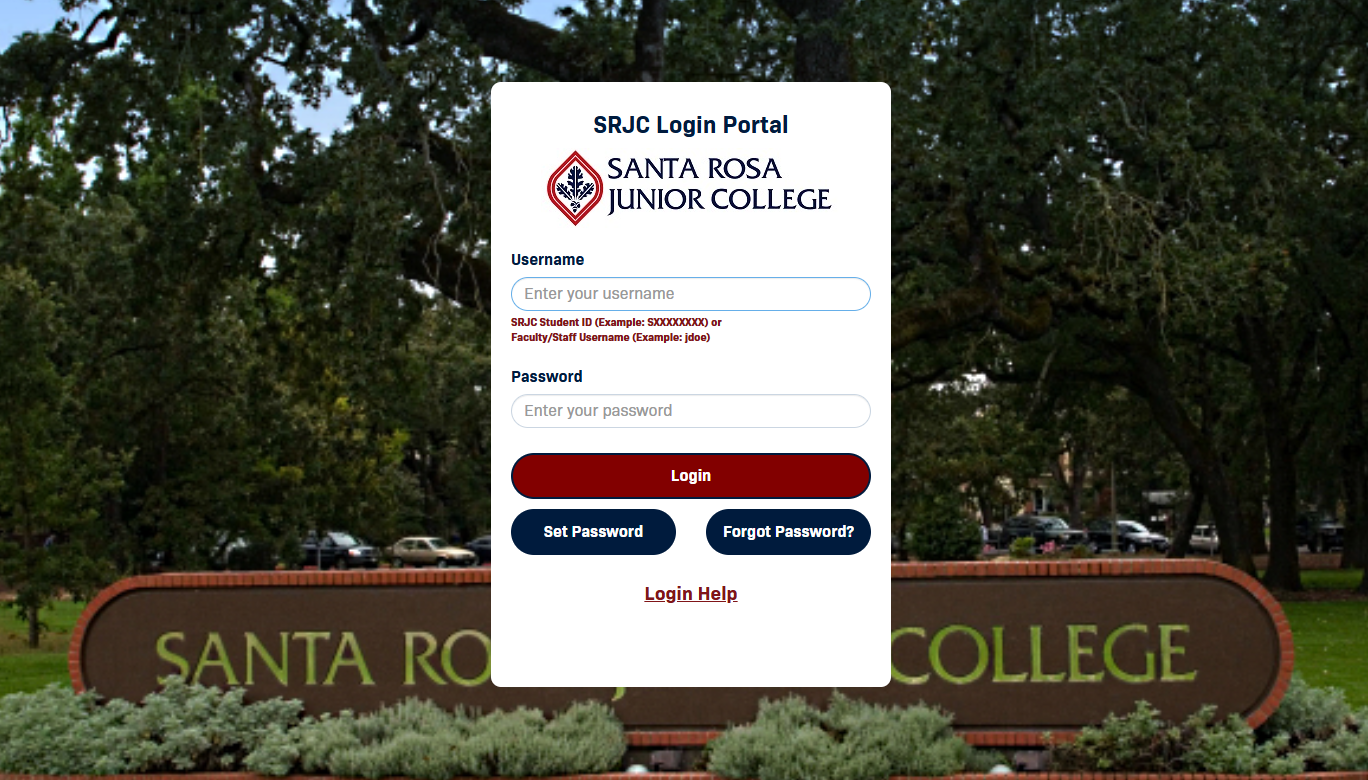
Go to the SRJC homepage, select “Login,” and choose Bear Cub Hub.
Use your existing Single Sign-On (SSO) credentials. You do not need to reset your password.
You can go to the Bear Cub Hub Login Page and log into the portal using your credentials.
- Why do students have different login instructions than employees?
Students currently use their Student ID # to access all applications at SRJC. Now that we have transitioned to a new SIS and related database all Student ID #s have changed. In contrast, employees currently authenticate with their SRJC username associated with their @santarosa.edu email, which is not impacted by the migration to Banner.
Bear Cub Hub Navigation
- What are “cards” in Bear Cub Hub?
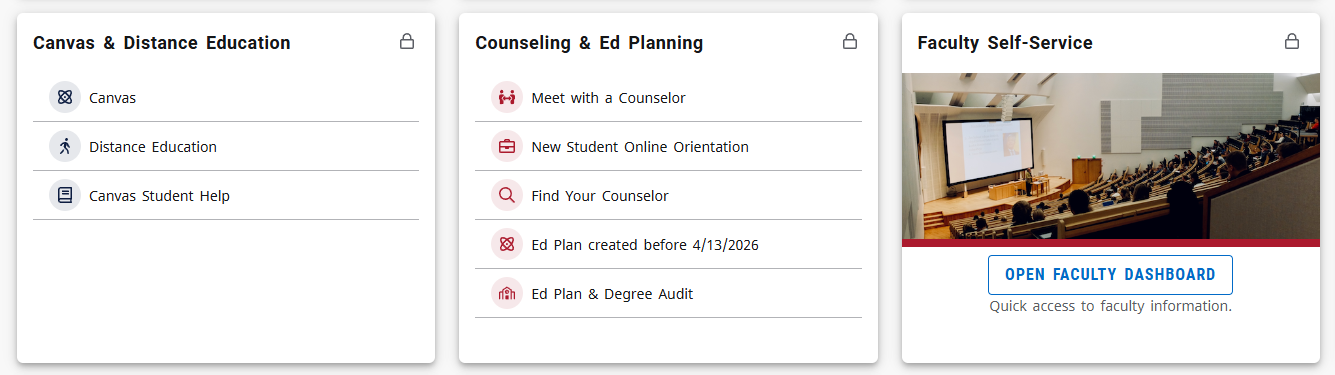
Cards are the main way to access tools and services. Each card corresponds to a specific function, such as registration, grades, or faculty tools.
- Why do my Bear Cub Hub cards look different from someone else’s?
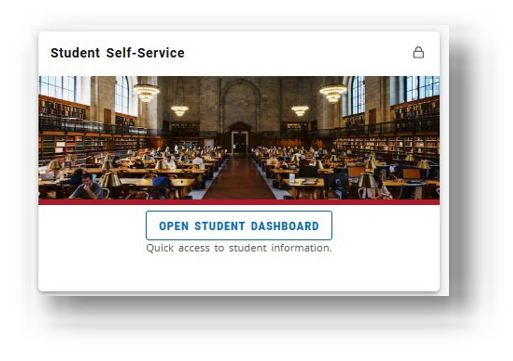
Cards are personalized based on your role (student, faculty, staff). Some cards may appear in different places or be required (locked) depending on your access.
- Why can’t I access certain features yet?
Some features may not be available until services (such as registration) are open or system updates are complete.
- Can I use Bear Cub Hub on my phone or tablet?
Yes. Bear Cub Hub adjusts to your screen size and will display cards in a vertical layout on mobile devices.
- What does the lock icon on a card mean?
A lock icon means the card is required for your role and cannot be removed from your home page

- How do I add or remove cards from my home page?
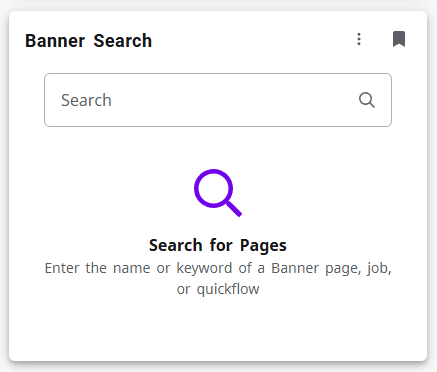
Use the flag icon on a card to add or remove it from your home page. In the picture below, the Banner Search card has been flagged or added as a "favorite" and will appear on the Bear Cub Hub home page.

You can also select “View All Cards” to browse available options.

- What is the menu icon (three lines) in the top corner?
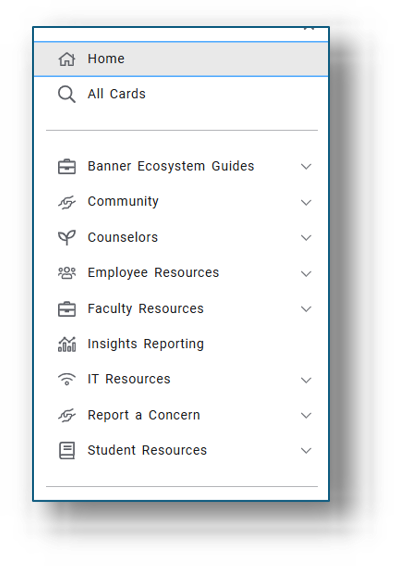
This menu provides a list of links and resources. The options you see will depend on your role at SRJC. This is sometimes called a "hambuger" icon.
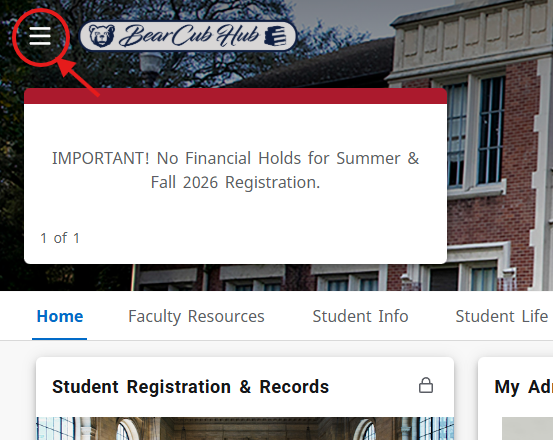
Here is an example of what a menu might look like when the icon is selected.
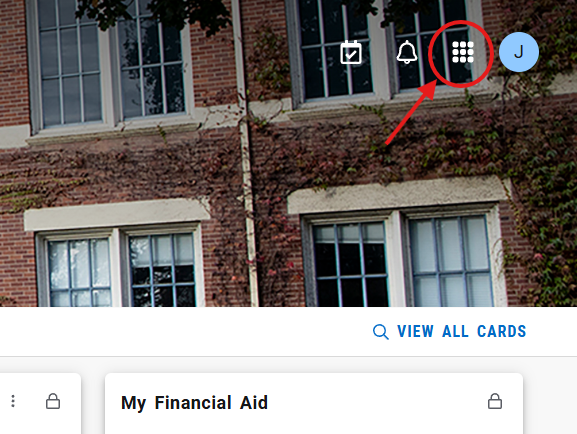
- What is the “waffle” icon?
The waffle icon opens additional applications available to you. Not all users will have access to every application.
- What are notifications and tasks?
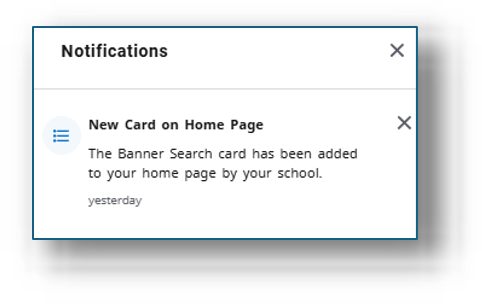
Notifications share updates. The notification icon is an icon of a bell and can be found in the corner of the Bear Cub Hub landing page.
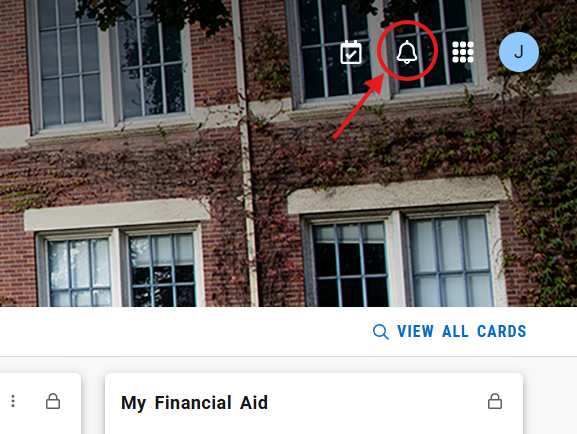
Pictured below is an example of Notifications faculty may receive.
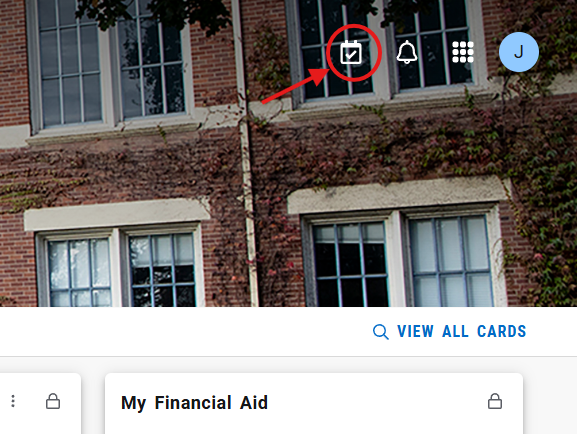
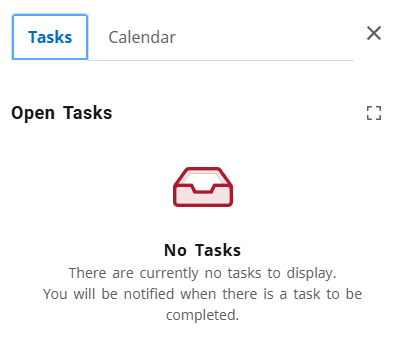
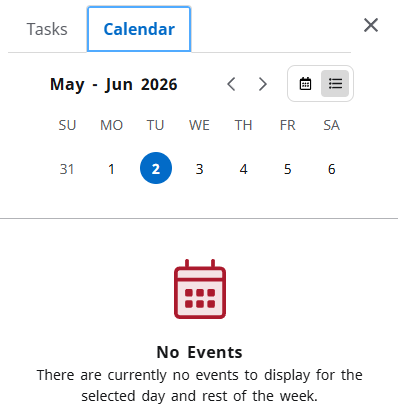
Tasks highlight items that may require action and may include a number indicator. The task icon is a calendar icon that is located in the corner of the Banner landing page, next to the notifications icon.
Pictured below is an example of the sample tasks and calendar options.
- How do I get back to the main page?
Select the Bear Cub Hub logo at the top of the screen to return to the home page at any time.

Using the banner search function
- How do I find out what roles and permissions I have in Banner?
Menu options and available Banner Search functions depend on the role assigned to your Banner account. You can check your role from the Banner Landing page.
- Go to the Banner landning page and click on the circle with the letter of your first initial.
- Next, click on View Profile.
- Finally, click on the Roles dropdown to view the roles assigned to you.
If you believe you should have certain roles added to your account, please contact your supervisor for guidance and put in a ticket with IT.
- Go to the Banner landning page and click on the circle with the letter of your first initial.
- Where is the Banner Search function?
The Banner Search function allows a user to query Banner and find information about classes, instructors, students, and any other information at SRJC.
Your permissions in Banner Search depend on your role at SRJC. If you are unable to access Banner Search or any information you feel you should have access to, speak with your supervisor and create a ticket with IT to ask for the needed permissions.
From the Banner landing page, scroll down to locate the Banner Search card.

If you cannot find the Banner Search card on your landing page, you can add the Banner Search card by clicking on "View All Cards" in the menu bar above the cards on your landing page.

After clicking "View All Cards," you will see all the cards that are available to your role at SRJC. Scroll through the cards to locate the Banner Search card.

In the upper-right corner of the Banner Search card, there is an outline of the flag icon. Selecting the flag icon will color in the icon. This means the card has been added to your Banner landing page.

- How do I find an Instructor's classes?
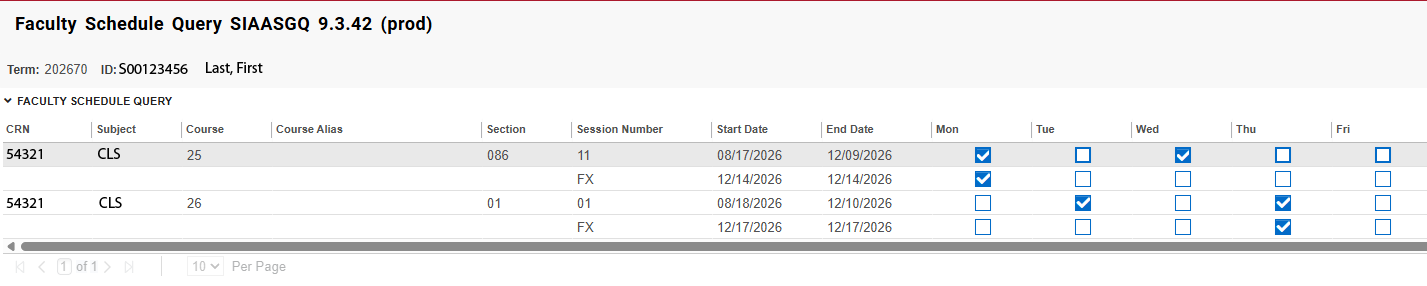
Method 1 via Banner Search Faculty Schedule Query (SIAASGQ) for a basic view of an instructor's assigned classes
- If you scroll to the top of your Bear Cub Hub landing page, you will see a "View All Cards" link.
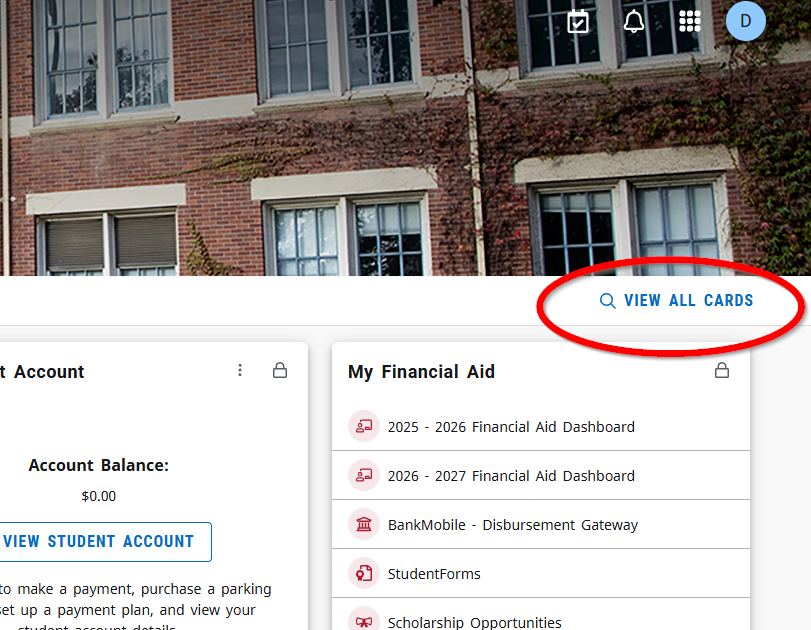
2. From there, you can find the Banner Search card.
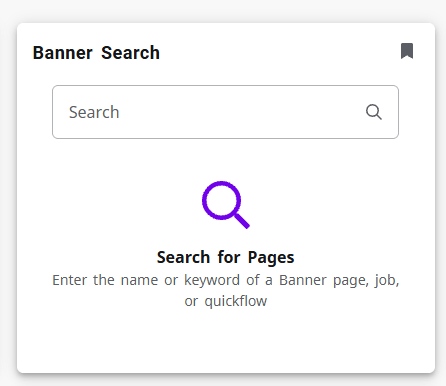
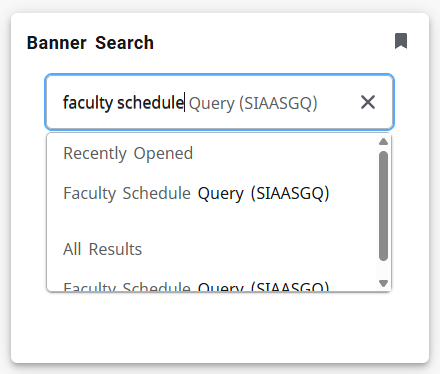
3. In the search field, you can type "faculty schedule" and the Faculty Schedule Query (SIAASGQ) option should populate:
4. From there, you can click on the three dots to the right of the field for "Term" to select the term.
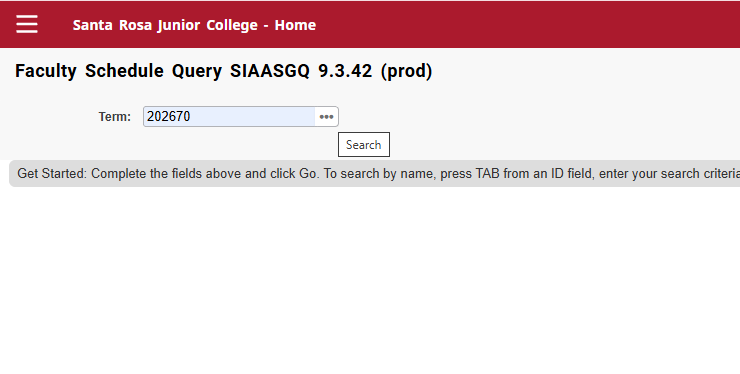
5. Next, you can click on the ID field and press tab. This will bring up a text search field where you can enter a faculty member's last name. Press enter after you've typed the name, and another screen will pop up.
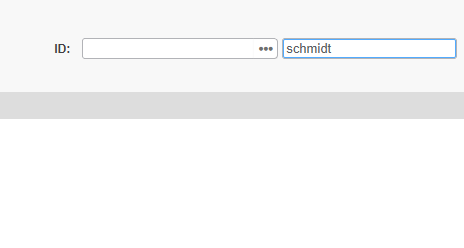
6. On the next screen, click "Press to see results" and you will get all entries that match the name you typed in.
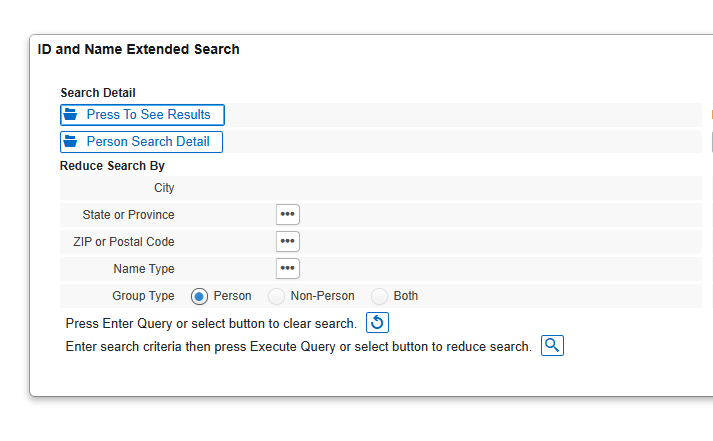
7. From here, you can further refine the search by typing after the %.
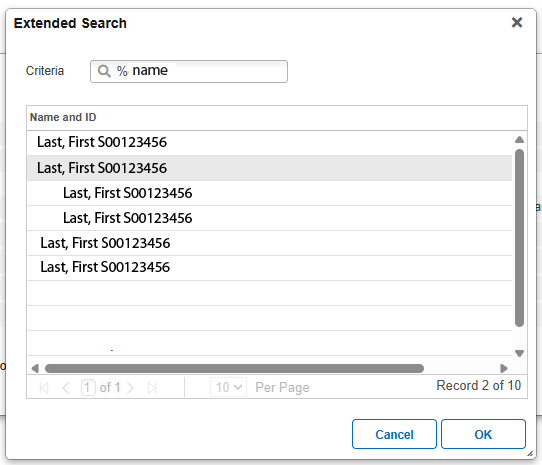
Highlight the name that matches the person you were looking for. Then, click ok. The SID will populate in the ID field. From there, you can then click the "Go" button on the right. This will bring up the schedule for the faculty and semester you've chosen.
Method 2 via Banner Search Faculty Assignment (SIAASGN) for a detailed view of an instructor's assigned classes and their load
As of Sept. 10, 2026, the numbers in SIAASGQ do not accurately show instructor loads. Use the old Faculty Portal to check instructor loads. Instructor loads are expected to be available in Bear Cub Hub by Spring 2027. If you have any questions, please contact your chair or dean.
You can see what classes an instructor has with the SIAASGN function. If you do not have access to the SIAASGN permissions, check with your supervisor and create a ticket with IT.
- To view the courses of an instructor for a term, navigate to the Banner Search card and enter SIAASGN in the text field. Press Enter.
- From the SIAASGN screen, you will see the ID field, the Term field, and the Go button. If you have the instructor’s Banner ID (S00XXXXXX), you can enter it here. To search for an instructor, click on the three dots to the right of the field.
- After clicking on the three dots, the Options List will appear. Select Person Search to search by name.
- Clicking on Person Search will take you to the SOAIDEN search screen. Here you can enter any criteria to search for the faculty you are looking for. In this case, an instructor’s last name has been used. After you’ve entered information, click on the Go button to run the query.
- Banner will return a list of all entries that match the information you entered.
- Locate the instructor you are searching for and click on the instructor’s name to select. The selected line will be highlighted in gray. After you have selected, click on Select in the lower-right corner.
- You will return to the SIAASGN screen with the selected instructor’s ID in the ID field.
- Next, click on the three dots next to the Term field to select a term.
- A window will appear with a list of terms to select from. Choose a term and click OK to proceed.
- Finally, click Go to run the query.
- You will be taken to the assigned courses for the instructor.
- The default screen will show one class at a time. To view more classes at once or to navigate through the list, use the navigation icons at the bottom-left of the screen.
- How do I view Add Codes for an Instructor?
Add codes are automatically generated at the start of every term for all courses. If you try to use a Banner Search term and don't have permissions, put in a ticket with IT to have those permissions added.
- To view Add Codes for an instructor, you can use SFAAUTC if you have the permissions. You will need the course CRN.
- Enter SFAAUTC into the Banner Search field and click ENTER.
- When the SFAAUTC screen loads, click the three dots to the right of the Term field.
- The Option List window will pop up. Choose List of Terms
- Choose the Term you want and click OK.
- Enter the CRN in the CRN field.
- Click the “Go” button to run the query.
- The list of Authorization (Add) Codes will appear along with any students that have used the codes.
- Please coordinate with the instructor to make sure that only one add code is given to one student.


