Bear Cub Hub and Student Information System FAQ
Find answers about SRJC's Bear Cub Hub and Student Information System, including registration, required tasks, grades, records, and account access.
Get help with Bear Cub Email | Reset your password or PIN
FAQ information updated March 23, 2026.
Before you sign in
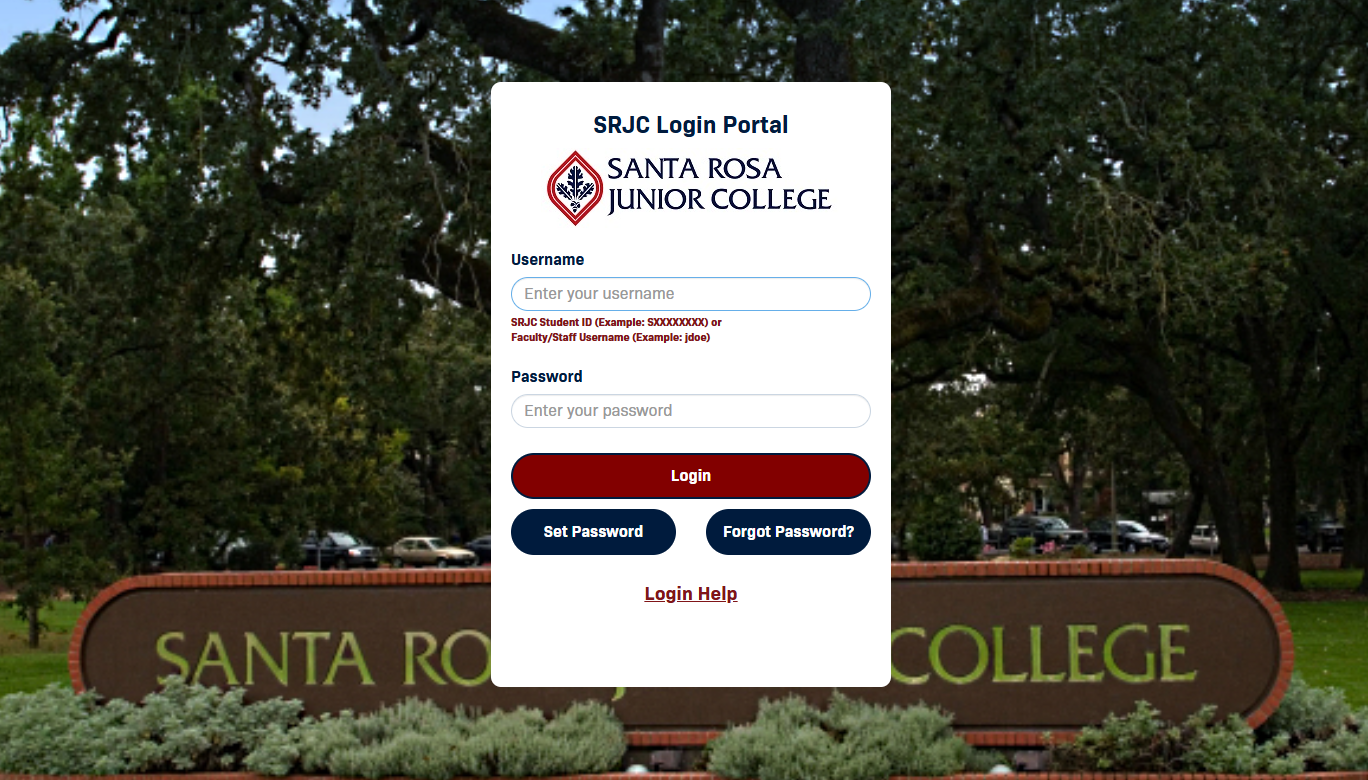
- Have your new Student ID (SID) and current password ready.
- Check your Bear Cub Email for important SRJC messages and account information.
- Students have been able to access Bear Cub Hub since April 1, 2026.
What can I do in Bear Cub Hub?
- Search, plan, register, waitlist, or drop classes.
- Complete the Pre-Registration Survey and other required tasks.
- Review attendance, grades, transcripts, and academic information.
- Update your student profile and personal information.
- Open student services and other SRJC tools from personalized cards.
Common questions & troubleshooting
- What is Bear Cub Hub?
Bear Cub Hub is SRJC's new portal where students and employees can access important tools, tasks, and information in one place.
- How do I log in to Bear Cub Hub?
On the SRJC website, open the Login menu and select Bear Cub Hub, or use the login button at the top of this page. Sign in with your existing Single Sign-On credentials; you do not need to reset your password.
- Where do I find my new Student ID (SID)?
Your new SID was sent to your personal email and Bear Cub Email. SID emails are sent in batches, so allow time for delivery and check your spam folder. You can also find it in the legacy student portal under My Profile > Security > Banner ID. If you still cannot find it, contact the Welcome & Connect Center.
- I do not remember my password or PIN. How do I reset it?
Visit the SRJC Password Portal Help Page and follow the prompts.
- What is my Bear Cub Email and why is it important?
Your Bear Cub Email is your official SRJC email account. SRJC sends all District communications to this address. It is also required to receive your SID and access key systems, including Bear Cub Hub.
- How do I access my Bear Cub Email?
Sign in to Gmail using your Bear Cub Email address and password. If you are already signed in to a personal Gmail account, add your Bear Cub Email as another account or use a private/incognito window.
- Where can I get help with Bear Cub Email?
Visit Bear Cubs Email Support, contact the SRJC Student Help Desk, or visit a Welcome & Connect Center.
- Did the Canvas login change for students?
Yes. Your Canvas username is now your new Student ID number. Your password (PIN) stays the same.
- Why can I not access a feature yet?
Some features are unavailable until a service, such as registration, opens or a system update is complete.
Tips for success
Check Bear Cub Email
Registration, waitlist, account, and college notices may be sent there.
Use your new SID
Your new Student ID is the username for Bear Cub Hub and Canvas.
Confirm every submission
Look for Registered, Completed, or another confirmation before leaving a task.
Try a private window
This can prevent conflicts with personal Google accounts.
Register, waitlist, or drop classes
- How do I search for classes?
Open the Student Registration and Records card and select Browse, Plan, and Register for Courses. Use search filters or advanced search to find classes that meet your needs.
- Where do I register for classes?
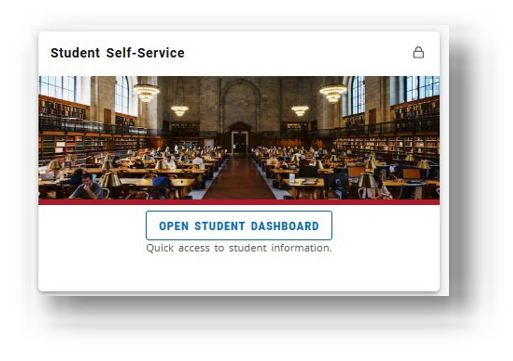
Open the Student Registration and Records card, select Open Student Dashboard, and use the registration tools.
- How do I complete the Pre-Registration Survey?
- Log in to Bear Cub Hub with your SID and password.
- Select the notification bell in the upper-right corner and choose View Task.
- Complete every section of the survey.
- Select Submit, then Complete Form Task.
- Confirm that the survey appears as completed under All Tasks.
- How do I know I am successfully registered?
After adding a class in Student Registration and Records, select Submit. Your status changes from Pending to Registered when registration is complete.
- Can I waitlist or drop classes?
Yes. In the registration summary, use the Action menu to choose waitlist or drop, then submit the change.
- How do waitlists work before a class begins?
Being on a waitlist does not mean you are registered, and the system does not automatically enroll you when a seat opens.
When a seat opens, the student at the top of the waitlist receives an email and has 24 hours to register:
- Log in to Bear Cub Hub.
- From Student Services, select Browse, Plan and Register Courses, then Register for Classes.
- Select the term for the waitlisted class.
- In the course Summary, choose Register from the Action menu.
- Save your changes.
If you miss the 24-hour window, you must add yourself to the bottom of the waitlist again. The system stops sending these emails 24 hours before the class start date shown in the schedule.
- How do waitlists work after a class begins?
On the first day of class, automatic waitlist processing stops, but instructors can still view the list. An instructor may send an authorization (add) code. Before using the code, drop yourself from the waitlist.
- How do I check my waitlist position?
- Open the Student Dashboard and select Browse, Plan and Register for Courses.
- Select Register for Classes or View Registration Information, then choose the term.
- Select the Schedule Details tab below the Search or Class Schedule area.
- Expand the waitlisted course using the arrow beside its name.
- Find Waitlist Position in the course details.
- When can I use an authorization (add) code?
Authorization codes are generated one week before classes begin. Faculty can then provide them to students. You can use a code starting on the first day of that class as listed in the course schedule.
- How do I use an authorization (add) code?
- From the Student Dashboard, select Browse, Plan and Register for Courses, then Register for Classes.
- Select the term and choose Continue.
- If you are already waitlisted, choose Drop Before Course Starts in the Summary and submit the change.
- Search by subject or CRN, then select Add beside the course.
- Enter the instructor's authorization code and select Confirm.
- Select Submit in the Summary and confirm that your status is registered.
- Return to the Bear Cub Hub home page. On the My Student Account card, select View Student Account and follow the prompts to pay your fees.
If the code does not work, check the class start date. Codes cannot be used before the scheduled first day of that class.
Grades, records, and your profile
- How do I check my attendance?
Open Student Registration and Records, then choose Attendance Tracking in your student dashboard to review attendance and absence percentages.
- Where can I view my grades?
Open Student Registration and Records, select View Grades, and choose the term.
- How do I change my Grade Mode?
You have until the last day of class to select P/NP in the portal:
- Open the Student Dashboard and select Register for Classes.
- Open the Schedule and Options tab.
- Select the linked Grade Mode for the class and make your choice.
After the semester ends, you must petition to change the grade mode.
- How do I request transcripts?
Open Student Registration and Records and select Transcript Request & Status. Follow the instructions in the external ordering system.
- What is my Student Profile?
Your Student Profile includes your contact information, GPA, academic standing, and registration notices.
- Where do I update my personal information?
Open Student Registration and Records and choose Personal Profile to update details such as your preferred name, phone number, or mailing address.
Navigate and personalize Bear Cub Hub
- What are cards in Bear Cub Hub?
Cards are the main way to open tools and services. Each card connects to a function such as registration, grades, or student records.
- Why do my cards look different from someone else's?
Cards are personalized by role. Students, faculty, and staff may see different cards, and some required cards may be locked in place.
- Can I use Bear Cub Hub on a phone or tablet?
Yes. Bear Cub Hub adjusts to your screen size and displays cards in a vertical layout on mobile devices.
- What does the lock icon on a card mean?
A lock means the card is required for your role and cannot be removed from your home page.
- How do I add or remove cards from my home page?
Use the flag icon on a card to add or remove it from your home page. A flagged card is a favorite and appears on the home page. Select View All Cards to browse more options.
- What is the three-line menu icon?
This menu—sometimes called a hamburger icon—opens links and resources. The options depend on your role at SRJC.
- What is the waffle icon?
The waffle icon opens additional applications available to you. Not every user has access to every application.
- What are notifications and tasks?
The bell icon opens notifications and updates. Tasks identify items that may require action and can show a number indicator. The task/calendar icon appears near notifications on the Banner landing page.
- How do I return to the main page?
Select the Bear Cub Hub logo at the top of the screen at any time.
Still need help?
Welcome & Connect staff can help with your SID, login, registration, and next steps.